


- First Steps
- Using B Better
- Billing & Cancellation
- Update Payment Info
- Renewals & Billing Cycles
- Cancel or Pause
- Get Receipts & Invoices
Billing & Cancellation (Paid Members)
Update Payment Info
Overview
How to update your credit card or billing details.
Where to find your billing settings
You can access all your billing details directly from your account dashboard. Here’s how:
Log in and go to Home. Click the Account tile (Billing & Subscriptions), or use the Account link at the bottom of any page. This opens your Membership Account page.
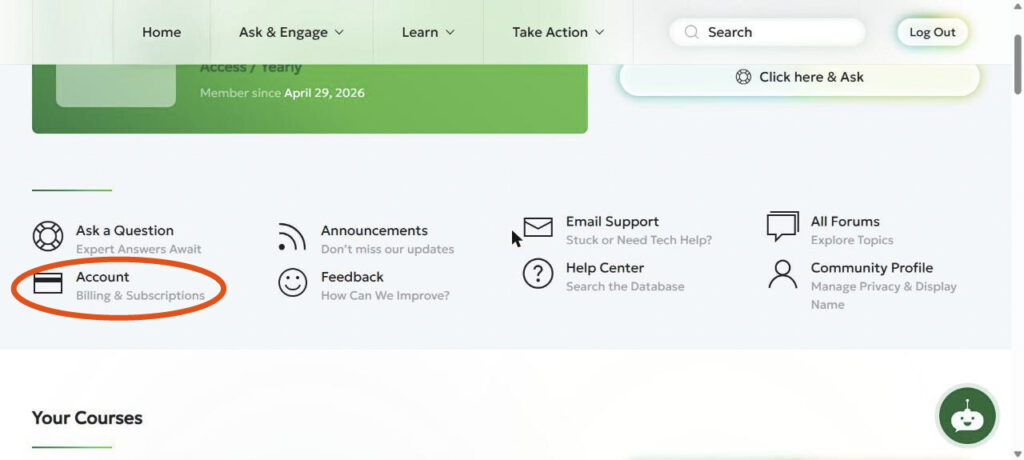
You can also access this page directly using this link (while logged in).
How to change your payment method
If you’ve recently changed your credit or bank card, you can update your details in just a few steps:
- Log in and go to Home. Click the Account tile (Billing & Subscriptions), or use the Account link at the bottom of any page. This opens your Membership Account page.
- Click Update Payment Method.
- Enter your new card details.
- Click Save.
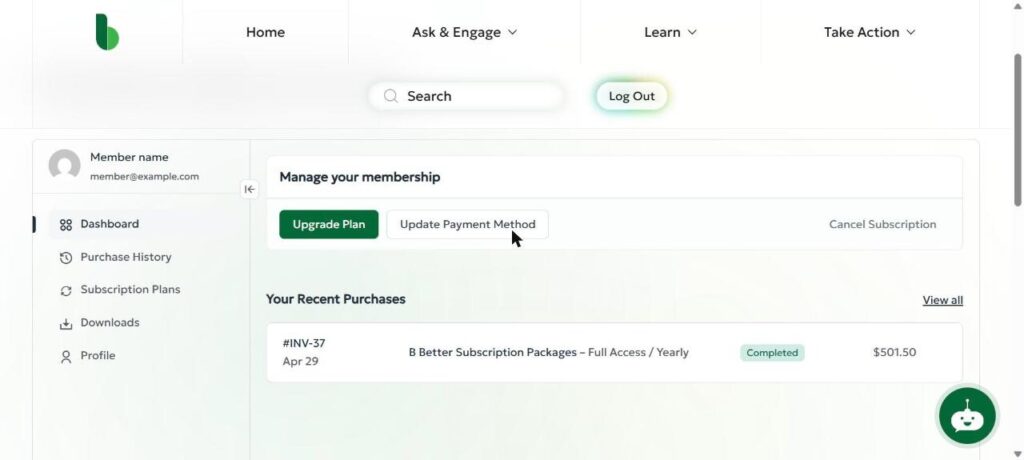
Once saved, your new payment method will be used for your next billing cycle.
Troubleshooting failed payments
Sometimes payments don’t go through — here’s what you need to know:
- If a payment fails, your plan shows a Past Due status on your Membership Account page. Our system will automatically retry up to 3 times over 15 days.
- If it’s still unsuccessful, your membership will be canceled automatically.
- To avoid interruption, we recommend updating your billing details right away.
Still stuck? Contact us at support@bbettermembership.com, and our team will help you update your details.
Renewals & Billing Cycles
Overview
Understand how and when you’re billed.
Monthly vs. yearly billing
At B Better, you can choose the plan that fits your lifestyle best:
Monthly billing:
- Starter: $49/month
- Full-Access Monthly: $99/month
Monthly plans renew automatically on the same date each month.
Yearly billing:
- Full-Access Yearly: $49/month (billed as $590 once per year)
Payments are processed automatically once every 12 months on your join date, saving you nearly 50% compared to monthly.
You’ll always know your plan type and renewal date by checking your Membership Account page.
Refund policy details
Since you receive immediate access to the full membership library upon joining, we’re unable to offer refunds on any plan. This applies to both monthly and annual plans. You’re free to cancel your membership at any time, and your access will remain active until the end of your current billing cycle.
When you’ll be charged next
Your next billing date depends on the plan you selected:
- Monthly plans: Charged automatically on the same date each month.
- Yearly plan: Charged once per year on the same date you first joined or upgraded.
Your Membership Account page shows your next payment date and amount on the Dashboard tab, and when your plan auto renews on the Subscription Plans tab.
What happens after cancellation
Once your membership is canceled, you’ll be moved to the Expired Member level. Here’s what that means:
- Still included (for life):
- Access to Monthly Live Q&A call replays
- Access to Guest Expert Call replays
- Access to free courses offered in partnership with B Better
- Access to sneak peeks into all core courses through their intro module
- You will lose access to:
- Courses, programs, tools, protocols, and content.
- The private community (posting, commenting, messaging).
Your paid access will continue until the end of your billing cycle. After that, access to all member-only content will be removed automatically.
You’ll still be part of our extended community — and you can rejoin anytime!
Cancellation & Pausing Your Subscription
How to cancel your plan
- Log in and go to Home. Click the Account tile (Billing & Subscriptions), or use the Account link at the bottom of any page. This opens your Membership Account page.
- Click Cancel Subscription.
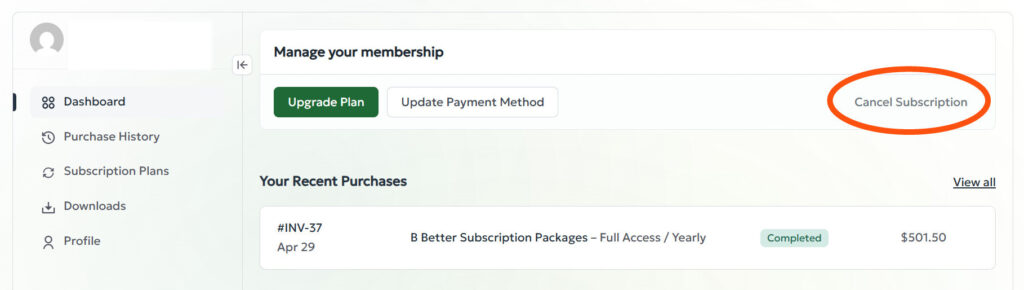
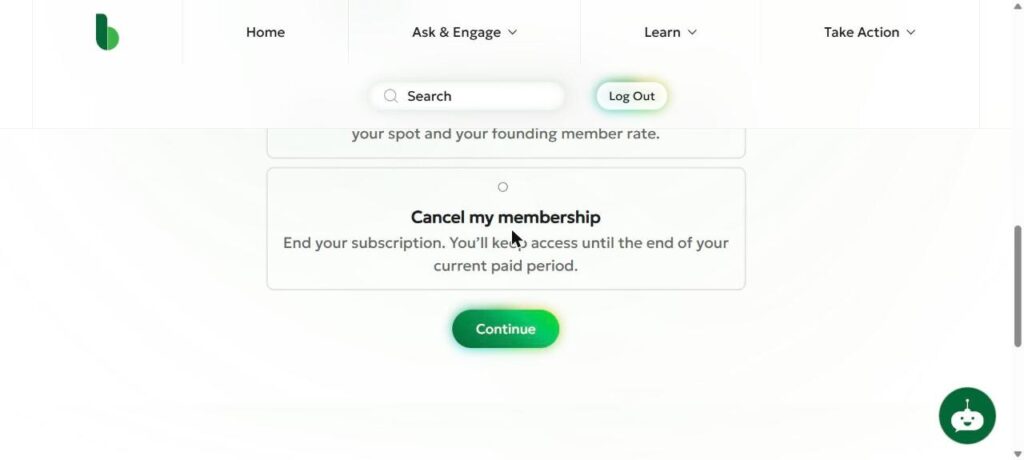
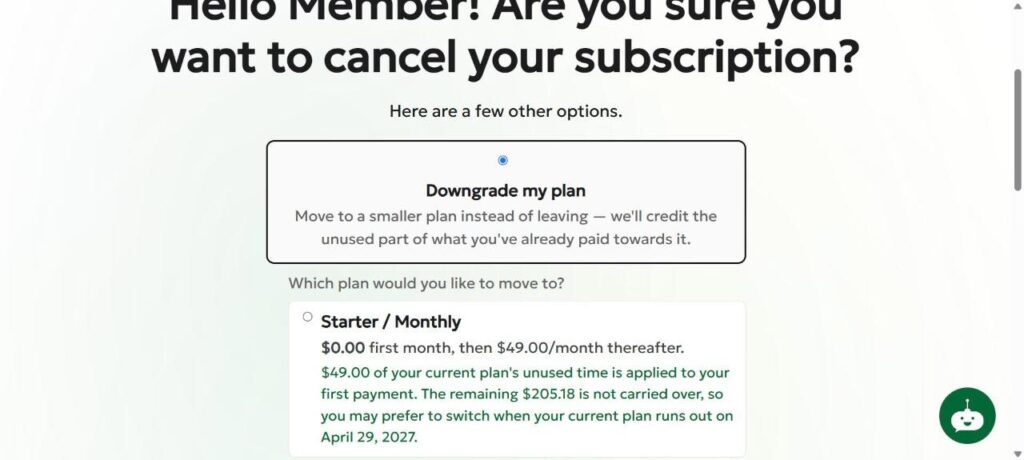
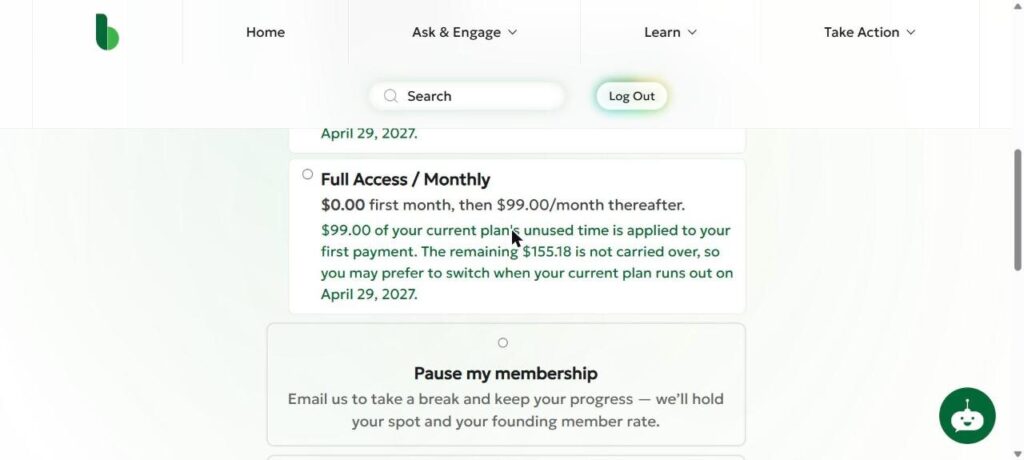
- You will see a page with other options before you go: downgrade (if your plan allows it), pause, or cancel.
- To cancel, choose Cancel my membership and click Continue. Your subscription is cancelled right away and you keep access until the end of your current paid period.
Prefer we handle it for you? Email our support team at support@bbettermembership.com.
How to pause your subscription
Need a break? You can pause your membership for up to 3 months instead of cancelling. Pauses are handled manually by our support team.
Go to your Membership Account page (Account tile on Home, or the Account link at the bottom of any page), click Cancel Subscription, choose Pause my membership, and click Continue. This opens an email to our team with the subject and message already filled in. Send it and we will set up your pause, for up to 3 months.
What happens when you pause:
- You won’t be charged during the pause.
- You’ll temporarily lose access to all B Better content and the community.
- You’ll still receive The B Better Insider to stay updated.
- Once the pause ends, your membership automatically resumes at your original rate, with full access restored.
How to downgrade your plan
If you are on an All Inclusive plan, you can move to a smaller plan. Go to your Membership Account page (Account tile on Home, or the Account link at the bottom of any page) and click Cancel Subscription, choose Downgrade my plan, pick your new plan and click Continue. Unused time on your current plan is credited toward your first month only. Anything beyond that is not carried over, so if you are on a yearly plan you may prefer to switch when it runs out.
Get Receipts & Invoices
Overview
How to download invoices from your dashboard.
Where to access past receipts
All your past payment receipts are stored safely in your account. To access and download them:
- Log in and go to Home. Click the Account tile (Billing & Subscriptions), or use the Account link at the bottom of any page. This opens your Membership Account page.
- Click the Purchase History tab.
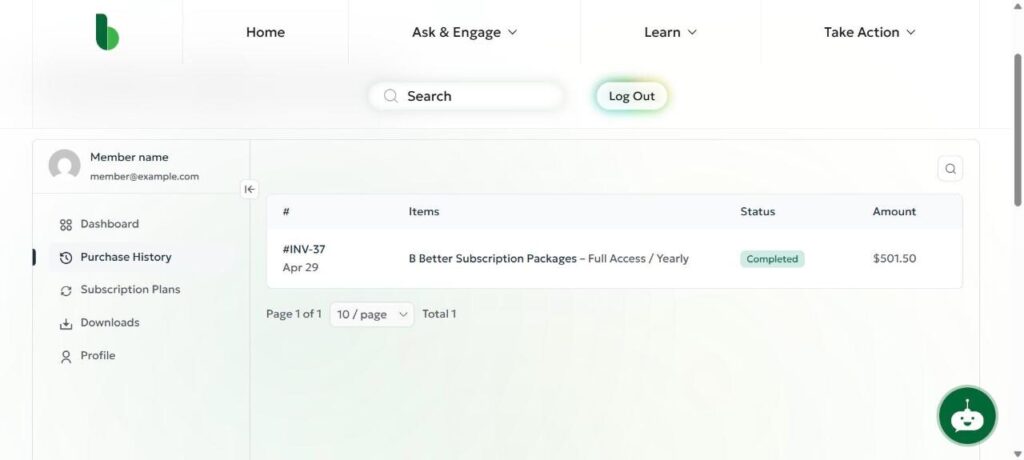
- Click the invoice number you need. It opens in a new tab.
- Click Download invoice or Download receipt.
Each invoice shows the invoice number, amount, payment date and the card used.
Common issues and how to resolve them
If you run into any trouble, here are the most common fixes:
- Can’t find a payment? Double-check that you’re logged into the correct account.
- Invoice not downloading? Try switching browsers or clear your cache.
- Payment didn’t go through? Click Update Payment Method on your Membership Account page. Unpaid invoices show as Open in Purchase History until they are paid.
If you need anything more, don’t hesitate to reach out to us at support@bbettermembership.com.